Sync Google Classroom Assignments and Grades to Blackbaud
Userbus's Google Classroom gradebook sync copies assignments and grades from Google Classroom to your Blackbaud gradebooks. The sync works like this:
- Looks at the assignments and grades in Classroom.
- Compares to what the sync copied to Blackbaud in the past.
- If there are any changes, updates Blackbaud.
- If there are new assignments or grades, creates them in Blackbaud.
Compare to Blackbaud's Own Gradebook Sync
Blackbaud has a Google Classroom grade passback of their own. However, theirs requires Google Workspace for Education Plus and Teaching and Learning licenses.
With Userbus, you don't need any new Google licenses!
Userbus does not require Google Workspace for Education Plus or Teaching and Learning licenses. It works with your existing Google licensing, including Google's free plan (Education Fundamentals).
Data Synced
| Data Type | Fields |
|---|---|
| Assignments |
|
| Scores |
|
Avoiding Duplicates
Blackbaud doesn't let vendors, such as Userbus, see assignments that teachers enter into their Blackbaud gradebooks. They're invisible to us. We can only see assignments that have been synced to Blackbaud through OneRoster. That makes syncing assignments a bit tricky.
Let's say a teacher has an assignment named "Homework 1". Should we sync it to Blackbaud? What if the teacher has already entered it in their Blackbaud gradebook? In that case, syncing it would create a duplicate assignment in Blackbaud. The teacher's manually entered assignments are invisible to us, so we don't know whether it's already there or not.
To work around this, Userbus asks you to pick a start date before you sync for the first time. We only sync assignments created on or after that date to Blackbaud.
We suggest sending a memo to your teachers about the start date, letting them know that Classroom assignments will be automatically synced to Blackbaud starting on that date. Past that point, if they enter an assignment into Classroom, they shouldn't enter it into Blackbaud, too, or they'll end up with a duplicate, since Userbus will copy over that assignment.
Sync Is Opt-In Per Class
Some teachers may not want their assignments automatically copied over. Some may want them copied for some classes, but not others.
Userbus supports both of the above scenarios by making sync opt in per class. Teachers can pick and choose which classes they want to sync without even leaving Classroom.
To opt in a class, a teacher goes to the class's Section field in Google Classroom and enters the course code and class identifier of the Blackbaud class they'd like to sync to.
Opt-in syncing has another advantage: It simplifies testing. Some schools start by opting in a single class; then, later, once they've vetted it, they roll out the sync to more teachers.

Categories
Assignments have categories in Blackbaud, such as Classwork, Homework, or whatever categories your school has defined. In Userbus, you pick a default category for synced assignments. When Userbus creates assignments in Blackbaud based on Google, it will use that category by default.
However, a default category is just that…a default. Teachers will probably want to override it for some assignments.
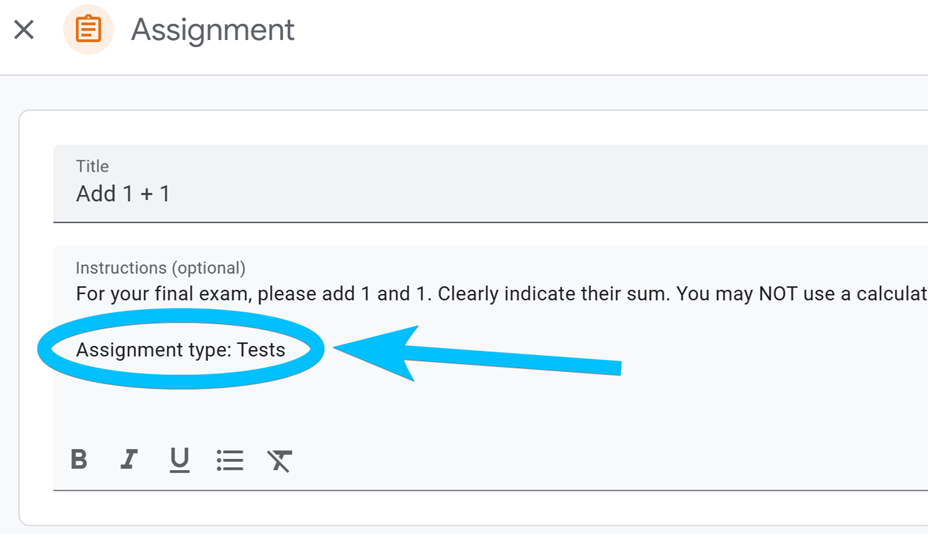
Teachers can override the default category right from Classroom. If a teacher
writes Assignment type: in an assignment's instructions, Userbus will use the
Blackbaud category with that name for the corresponding assignment that it
creates in Blackbaud.
Matching Classroom Students to Blackbaud Students
How does Userbus know that Johnny Smith in Google Classroom is the same as Johnny Smith in Blackbaud? What if more than one student is named Johnny Smith in Blackbaud?
To make sure scores to go the right students, Userbus matches on email address. If your Blackbaud students have the same email addresses as your Classroom students, the sync will be able to match them easily. If they have different email addresses, it may be possible to use a different kind of matching, depending on your setup. Reach out to us and let's talk!
Sync Times
The sync can run:
- On demand at any time by logging in to Userbus's web portal and clicking the Run button. Changes are reflected in Blackbaud gradebooks by the time the sync finishes running.
- On a schedule that you can adjust in the web portal.